Chapter 2 Google Cloud Platform
Before you can connect data to R, you need access to Google Cloud Platform (GCP), Google’s suite of cloud computing services. This chapter explains what GCP is, why it matters, and how to access an existing project or request a new one.
2.1 Definition
At the Department for Transport (DfT), we have an organisation account with Google, under which resources are organised into projects.
Think of a GCP project like an R Studio project, a dedicated space where you keep everything organised for a specific task. Just like an R Studio project keeping your scripts, data and settings separate from other work, a GCP project keeps a team’s cloud resources and permissions separate from other teams.
If you tried to run multiple analyses in R without using projects, you might overwrite variables, load conflicting packages, or struggle to find the right files. In the same way, if all teams shared the same GCP project, it would be harder to manage access and keep things secure.
With separate GCP projects, each team gets its own space with the correct settings, permissions, and tools for its work. This keeps everything organised, prevents accidental changes, and makes it easier to manage resources while still being part of the organisation’s wider cloud setup.
Each team (or division) has their own separate GCP project, which contains its own settings, permissions and resources.
To access GCP, you MUST request access to either:
We will walk through the steps required for both scenarios.
2.2 How to: Access GCP
2.2.1 An existing project
Each team has an individual GCP project assigned to them. For example, members of Maritime Statistics have a GCP project called dft-maritime-statistics-prod. Speak to your team or colleagues within your team or division to find out the project name.
New! Please complete this step with your IT Focal Point. (if you are the owner, this process is done at project creation)
- Go to Ivanti (i.e. HEAT)
- Go to the Service Catalogue
- Go to the Global Security Group SR
- For the Change Requested section, select Change Members.
- For Group Name, fill out the name of the requester group, which should be in a format like this:
eid-dft-ap-gcp-project-<<project-name>>-requester - In Member Names to be Added, fill out your name as it appears on your DfT handle i.e:
first_name.last_name - Click Review and Submit
Your request will be actioned by Cloud Engineering team. Once approved, you will be able to see the full list of access packages for that project, in the Access packages section on myaccess.microsoft.com.
New! Once the SR (Service Request) has been completed, you should be able to see the access packages related to the group. e.g. <<project-name>>-data-scientist, <<project-name>>-data-engineer, gcp-dft-<<project-name>>-product-owner
From here, you need to decide what access package you need. Specific roles and groups in each access package can be viewed via the IAM Catalogue.
Request the Packages you need and wait for one of the Owners to approve them. Even if you are the project’s owner, the secondary owners must approve the package.
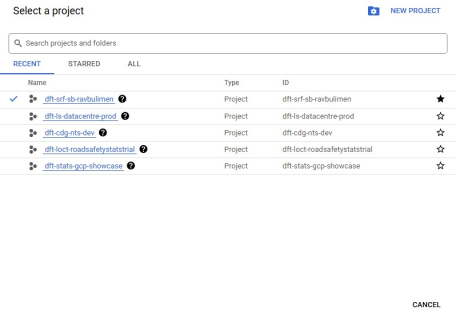
Go to the Google Cloud to check that you have access to the appropriate group(s) and project:
- Google group(s)
- GCP Project
You can also view your assigned groups “groups.google.com/my-groups”.
Example:
2.2.2 A new project
This process is more complex because several factors need to be considered when requesting a new GCP project.
There are a number of things you need to consider before a new GCP project can be granted for you, including:
- What will the project be used for?
- Will the project involve handling sensitive or restricted data?
- Who needs access to the project, and what level of permissions will they require?
- Will the project need to connect with other GCP services, external databases or APIs?
These things should be discussed with a Senior Data Engineer by sending an email to data.engineering@dft.gov.uk with the subject line: I want to request a GCP project, and ensure you have cc’d Francesca Bryden (Head of Data Engineering).
From there, a Senior or Head Data Engineer would recommend your request gets either transferred to your IT Focal Point OR submitted for further approval by the Architecture Change Board (ACB).
Digital Services have created a new GCP Environment Request form for IT Focal Point (ITFP) to use when requesting a new GCP project.
Once you have approval from either a Senior Data Engineer or ACB, you and your ITFP will need to prepare a submission request, which will include:
Change Requested: New Environment
Workload Type:
- Storage Workloads
- Dev, Test, Prod: This is the recommended choice. If you choose another option, your request may take longer to process, as you may be asked to justify why you need a Nonprod, Prod, or Prototype storage workload. Note: The dev and test environments are only for data engineers, while analysts would use the prod environment.
Dev(Development): Where code is first written and tested by developers. It is usually unstable and not used by end-users. You can try out experimental features here.Test(Testing): A staging area for testing new code before it goes live. It often mirrors the production environment and is used for QA and user acceptance testing.Prod(Production): This is the live environment that users interact with. It should be stable and secure, and only tested and approved code is allowed to be used here.
- Nonprod, Prod
- Prototype: A limited-time project. You can use live DfT data in it. Request for a prototype project requires additional approval from the Data Architect and or Cloud Engineering. Prototype projects should always be replaced with a proper, long-lived project before going live.
- Dev, Test, Prod: This is the recommended choice. If you choose another option, your request may take longer to process, as you may be asked to justify why you need a Nonprod, Prod, or Prototype storage workload. Note: The dev and test environments are only for data engineers, while analysts would use the prod environment.
- Sandboxes: This is a personal project for the requested user (not to be used for team projects). You cannot use live DfT data, only fake or published data. Request for a sandbox project requires additional approval from the Data Architect and or Cloud Engineering.
- Environment Type (Standard): Playground for experimentation and learning. Focused on the top serverless services in GCP.
- Environment Type (Infrastructure): A playground for experimentation and learning with access to VMs, containers, and networks.
The steps to follow still apply when requesting a Sandbox project, except for the Environment Type, which again you should discuss with the Data Engineering team. The usual option is Standard.
- Bolt-ons
Additional services you would like added to the project. Again, this should be discussed with Data Engineering team, as they will be determine if you need a bolt-on service. Please note that requests for bolt-ons may take longer to get approved.
| Bolt-on | Description |
|---|---|
| APIs | Enables API Managers to be used within a workload |
| External Access | Provides networking, access, and permissions for external use cases |
| Infrastructure | Enables VM and Container resources to be provisioned |
| Data Pipelines | Enables services for Extract, Transform, and Load (ETL) processes |
| Interconnectivity | Provides networking, access, and permissions for internal DfTc use cases |
| Cloud SQL | Enables use of Cloud SQL |
| Load Balancer | Enables the use of load balancers |
| Networking | Enables the creation and management of VPCs within the project |
Workload Name: This is the name for the environment/s that are easily understandable to the wider DfT (e.g. Respond, Intranet or Emissions Data). Any Acronyms need to be spelt out.
Primary and Secondary Project Owner
The primary and secondary owners of the GCP project will be the main contacts and will be responsible for overseeing the project. Their email addresses and division names will be automatically generated.
- Project Name
Choose a project name (maximum 17 characters). The Full Project Name will be automatically generated by adding ‘gcp-dft-’ to the beginning of the name you enter and ‘-[environment type]’ to the end, based on the value in the Environment Type field. The full project name will follow this format: ‘gcp-dft-[selected name]-[environment type]’.
[selected name]: is usually your team name (e.g. maritime)[environment type]: is usually your profession (e.g. economics)
- Information Asset Owner
Select the Information Asset Owner for the project. According to the Government Security: Roles and Responsibilities (issued in November 2018), Information Asset Owners are ‘named senior individuals responsible for each identified information asset (e.g., database or ICT system) at the appropriate business level within a Department/Agency.’
If you are unsure, please contact informationhandling@dft.gov.uk. The Information Asset Owner is the person responsible for the data in your project. This may be you in the case of sandboxes, but it could be a separate entity otherwise.
- Developed and Supported By
In the ‘Developed By’ section, specify who is developing this work. This could be an internal team, a supplier, or another government department (OGD).
In the ‘Supported By’ section, specify who will be maintaining the work. This could be an internal team, a supplier, or an OGD.
- Recovery
Next, input the Recovery Time Objective (RTO) and Recovery Point Objective (RPO). Note that the digital service may not always be accountable for its recovery, but only the platform in some cases. For monitoring purposes, enter the expected recovery time of the service (e.g., 1 hour, 8 hours, 24 hours, etc.).
The RTO is the maximum amount of time that a system or service can remain unavailable after a failure or disruption before it impacts business operations. The RPO is the maximum amount of data that can be lost during a system failure, measured in time. It defines the acceptable window of data loss and indicates how frequently backups or data replication should occur.
Finally, choose the appropriate Recovery Tier, which indicates the level of prioritisation for recovering the workload.
- GitHub Username
For best practices, it is recommended to use GitHub to store your code when interacting with GCP. Enter the GitHub username of the project owner(s). The Requester must have an enterprise Github Account or raise an SR.
- Justification
Justify the purpose of creating this new GCP environment by explaining what it will be used for. Additionally, enter the IAM permissions you might need for the project. This should have been discussed with the Data Engineering team and confirmed through your own research by looking at the Google IAM permission documentation.
- Date Required
The required date is automatically set to 5 days. Adjust this if a longer time frame is needed or if the default value falls on a weekend, as this would prevent submission.
- Folder ID
Leave the Folder ID blank unless a specific GCP Folder is required. If needed, this should be the numerical GCP Folder ID where the project will be placed.
When you have all the required information, your ITFP can submit the request to create a new GCP project. These requests require review and approval by the Architecture team. Once submitted, they usually take around one week to be processed.
2.3 GCP Permissions
Permissions are managed via Microsoft Access Packages.
If you are creating a new project, please ensure that you request all the appropriate access packages needed to complete your role in the project.
Individuals should not request additional permissions for an existing project unless absolutely necessary.
It is recommended that individuals request only the minimum level of permissions required and review these permissions regularly to ensure they remain appropriate.
Our Data Engineering team spoke at a recent Coffee and Coding presentation on GCP Permissions, which you can view below:
Slides to accompany the recording: 20250610 GCP Permissions
2.3.1 Common permissions
If you’re using R to interact with GCP services (like reading from or writing to BigQuery or Google Cloud Storage), your GCP account must have the right permissions. The permissions you’ll need depend on the services you plan to use:
- BigQuery
To run queries, view tables, or move data from BigQuery to R, you will typically need permissions such as:
bigquery.dataViewerorbigquery.user(to query and read data)bigquery.jobUser(to run queries)bigquery.dataEditor(to create, overwrite, or delete tables in a dataset) –this permission is only needed if you need to modify or write data, not just read or query it
Read the documentation on BigQuery IAM roles and permissions for more detail.
- Google Cloud Storage (GCS)
If you are pulling data from or pushing files to GCS, you will likely need:
storage.objectViewer(to read files)storage.objectCreatororstorage.objectUser(to upload files)
Read the documentation on Cloud Storage IAM roles and permissions for more detail.
If you need to use both services for your analysis, you will need to request all the permissions listed above.
2.3.2 Less common permissions
If you’re running R code inside GCP—for example, using services like Cloud Run to host a Shiny app or scheduled R script—you’ll still need the permissions mentioned in 2.3.1 (for BigQuery and GCS), but you might also need additional permissions depending on how your R environment is set up.
One common service is:
- Cloud Run
If your R environment (e.g. a Shiny app) is deployed on Cloud Run, you may need:
run.invoker(to allow GCP services or users to invoke the app)run.admin(if you’re deploying or managing Cloud Run services)- IAM roles that allow the service to access BigQuery or GCS if needed like
bigquery.dataViewer, etc
Read the documentation on Cloud Run IAM roles and permissions for more detail.
Hosting a Shiny app or scheduling an R script inside GCP is much more complicated, so it is best to contact the Data Engineering team (data.engineering@dft.gov.uk) for support getting started.
2.3.3 How to: Check your permissions
Here’s a video tutorial on how to check what permissions you have:
2.3.4 How to: Amend your permissions
If you are unable to gain the permissions necessary to complete your role via access packages, do the following.
Provide Architecture and your ITFP:
- your Project Name
- the amendment you want to make —> IAM Permissions
- the permissions (e.g.
bigquery.dataEditor). - Access Package name or new Access Package which you think should be created.
- the permissions (e.g.
- Notes/Comments: any additional details
- Get approval from the architecture team
- Submit a request via your ITFP
2.4 How to: Connect GCP to R
Following the announcement of the GCP project transition, the methods listed below are now obsolete and must not be used.
During and after the transition, users must utilise the following methods to connect to R:
We have retained the method below in the playbook because, while we are in the initial stage of transitioning the GCP project to the new infrastructure, some existing projects may still use the JSON key method – although this will no longer be an option once the GCP project transition is complete.
2.4.1 Outdated method
Here’s a video tutorial on how to set up a service account key in GCP:
How to set up a service account key in GCP
- Go to Google Cloud Console
- Navigate to IAM & Admin > Service Accounts
- Select the service account you want to use, or create a new one
- Click Keys > Add Key > Create New Key
- Chose JSON format and click Create
- The JSON file will be downloaded to your computer
- Upload the JSON file (from your downloads) into your Project’s directory in R
You will need the {jsonencryptor} package to encrypt your service account key file.
install.packages("remotes") # only needed once in the consoleremotes::install_github("department-for-transport-public/jsonencryptor") # only needed once in the consoleWith the new R workstations, you do not need the install_github() function; you use the install.packages() instead:
install.packages("jsonencryptor") # only needed once in the consolelibrary(jsonencryptor) # this should be in your scriptRead the package’s documentation for more details.
This password will be used to encrypt and decrypt your GCP key. In your R console, run the function:
jsonencryptor::secret_pw_gen()Important
- Do not store this password in your code
- Save it in your
.Renvironfile so R can access it without typing it every time
Example .Renviron entry:
GARGLE_PASSWORD = “your_password_from_secret_pw_gen”
(Add a blank line at the end of the file, then restart R)
If you do not have a .Renviron file outside your project’s directory, create one!
You can check it is set with: Sys.getenv(“GARGLE_PASSWORD”)
Your secret password should then appear in the R console; if not, then you have not followed the instructions carefully.
- Download your service account key from GCP in JSON format
- Upload the JSON file (from your downloads) to your Project’s directory in R
- Encrypt it with the following code (again this is done in your R console):
jsonencryptor::secret_write("new_encrypted_key.json", "old_service_account_key.json")The first argument is the new name you want to give your encrypted key. The second argument is the original or current name of your service account key (the JSON file you uploaded to your project directory).
This code will create an encrypted file in inst/secret/encrypted_key.json.
- Delete the original
old_service_account_key.jsonto keep it secure.
To finish the encryption process, run the code: jsonencryptor::secret_read("new_encrypted_key.json"). The decrypted key will be returned for use in authentication without being exposed in plain text.
You’re now connected! However, before you can use your encrypted key to access GCS or BigQuery, you need to authenticate your R session.
2.4.1.2 Authentication
After following the steps above to connect GCP to R, you must authenticate your encrypted key.
Authentication is the process of proving your identity to a system so it can verify you have permission to access its resources. When working with Google Cloud Platform (GCP) from R, authentication ensures that your R session is securely linked to a valid service account.
Even if you’ve already set up and encrypted your GCP key, you must authenticate it at the start of each new R session before you can connect to GCP services such as Google Cloud Storage or BigQuery. Without authentication, your R code won’t be able to read or write data in your GCP project.
2.4.1.3 Use your encrypted key with GCS
To work with GCS, you’ll need the googleCloudStorageR package. The package provides functions to interact with GCS directly from R, making it easy to upload, download, and manage files.
Read the package’s documentation for more details.
install.packages("googleCloudStorageR")library(googleCloudStorageR)Use secret_read() from jsonencryptor to decrypt your service account key, and pass it into gcs_auth():
googleCloudStorageR::gcs_auth(secret_read("encrypted_key.json"))You must do this before every R session; therefore, this part should be included in your R script.
If no error message appears, authentication was successful.
googleCloudStorageR::gcs_list_buckets(projectId = "your_project_ID")What this does:
- A bucket is like a folder in GCS where your data is stored
- Retrieves a list of all buckets you have permission to access with your service account
- Your Project ID is your GCP project name
Now you can:
2.4.1.4 Use your encrypted key with BigQuery
You will need the {bigrquery} package to query datasets from R. Also, you will need the secret_read() from {jsonencryptor} to decrypt your service account key. Finally, to begin working with BigQuery in R, you will need to establish a connection using the {DBI} package.
install.packages(“bigrquery”)library(bigrquery)install.packages("remotes")remotes::install_github("department-for-transport-public/jsonencryptor")OR, on the new workstations, it is this:
install.packages("jsonencryptor")library(jsonencryptor)install.packages(“DBI”)library(DBI)Use secret_read() from {jsonencryptor} package to decrypt your service account key, and pass it into bq_auth():
bigrquery::bq_auth(path = secret_read("encrypted_key.json"))If you changed your encrypted service account key from the example, replace “encrypted_key.json” with the actual name.
Once authenticated, you can connect to a specific project and dataset:
con <- DBI::dbConnect(
  bigrquery::bigquery(),
  project = "your_project_id", # Replace with your GCP project ID
  dataset = "your_dataset_name" # Replace with your dataset name
)conis the connection object used to interact with BigQuery.
You can see all tables in the dataset with:
DBI::dbListTables(con)This retrieves a list of tables you can query in that dataset, allowing you to confirm what is available before querying or importing data into R.
2.4.2 Errors in connecting GCP to R
If you get an error when trying to authenticate your session, it’s often because the key failed to decrypt. Common causes include:
- an incorrect password
- providing the wrong file name to
secret_read() - the encrypted key is not present in the
inst/secretdirectory
Despite what the error message might suggest, this is rarely due to missing permissions on your service account.
To fix this:
- double-check that your password (in
.Renviron) is correct - confirm that your encrypted key exists in the
inst/secretdirectory - if needed, re-encrypt the key using
secret_write()and try authenticating again
If you encounter any other permission-related errors, your service account or project likely lacks the required permissions. You can verify and update these in the IAM & Admin section of the Google Cloud Console.