Part 1 I need to run some code right now
Oh hey, you’ve arrived at the R crisis section of this book, I’m sorry you’ve found yourself here.
This chapter aims to talk you through some of the most common questions you might have if you’ve suddenly been told “we need X and you need to run the R code to make that happen”.
It starts off assuming you’re a complete beginner, so you may want to skip some sections if you’re a comfortable user of R.
And once you’ve got through this R crisis, consider checking out the future proofing best practice section at the end to prevent this happening to you again!
1.1 Different versions of R?
There are at the time of writing, three different versions of R you can possibly use across DfT:
- Citrix R
- Local R
- Cloud R
All of them are set up and run in slightly different ways, and code written for one may not work on the other two. If you know which version of R the code you’re trying to run was written for, and you have that version of R on your laptop, use that version.
If you have no idea, or you don’t have that version set up, use Cloud R. It’s the easiest one to request, install and use, and will give you the fewest weird bugs.
1.1.1 Citrix R
Citrix R is the oldest (and probably worst) version of R we have. It’s easy to spot because it’ll be called RStudio followed by numbers (e.g. 11453 in this example).
It runs an old version of R and doesn’t allow you to install packages that aren’t already on the system. Don’t use this unless you have to!
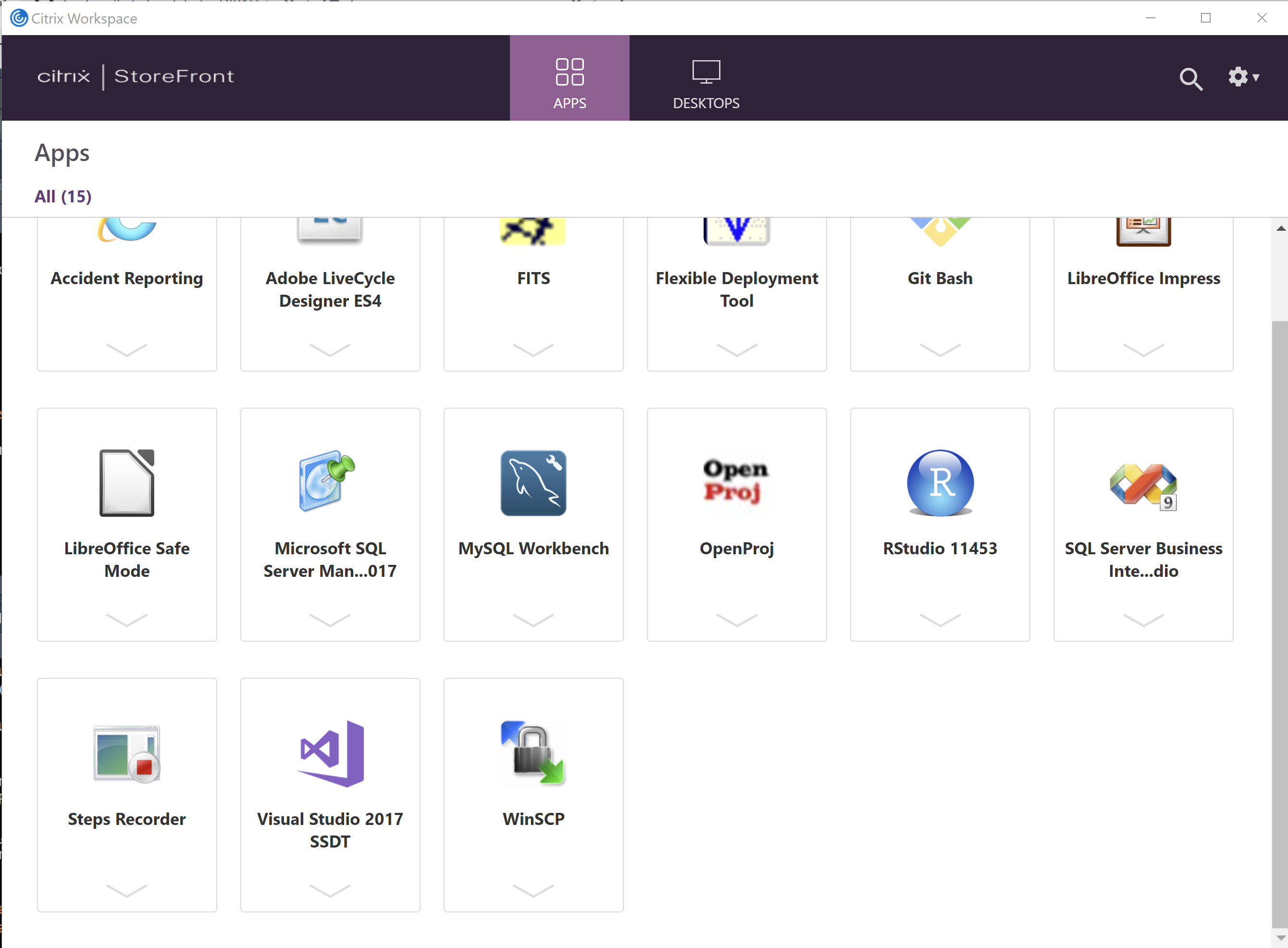 If you need it, you can request an install of Citrix R from your IT Focal Point.
1.1.2 Local R
Local R is a version of R which is run from within your laptop (rather than on a remote server). You can tell if you’re running local R as it will just be called RStudio, with no numbers after it.
This version is more up to date than Citrix, but is still quite old. It does allow you to install packages, but this can be tricky depending on different permissions you have, how R has been installed, etc etc. Again, don’t use this if you don’t have to; most code written to run on Local R will also run fine on Cloud R if you ensure the file paths are right.
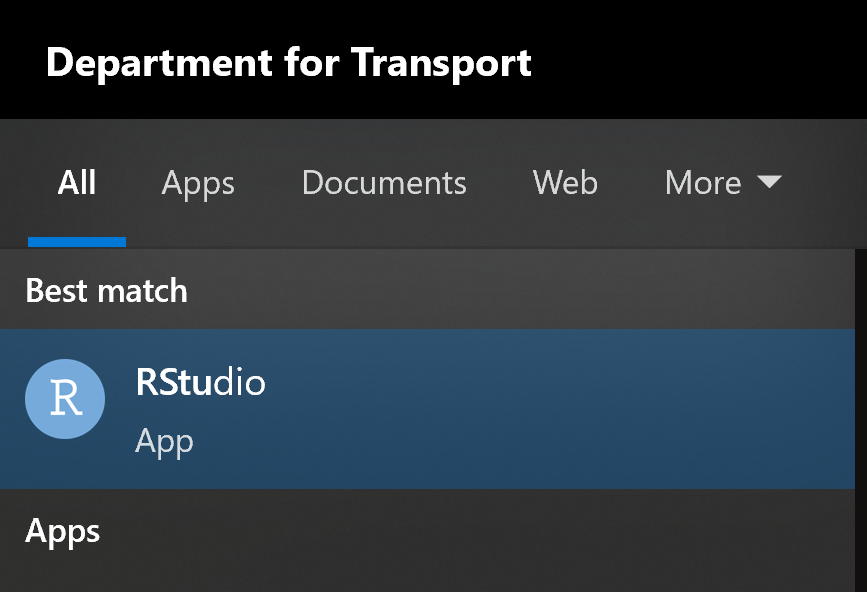
If you need it, you can request a copy of local R (often called CRAN R) from your IT Focal Point. If you find installing packages is hard, there’s loads of DfT-specific advice in the Coffee and Coding wiki channel
1.1.3 Cloud R
Cloud R is a GCP-based cloud version of R that you run from in your browser like a website. It’s got connectivity to the G drive, you can download packages that you need, and it’s generally easy to run. If you can use this version, I would recommend it!
You log in to Cloud R using a link that always starts with gcp-. There’s a few different servers, so the name of yours might vary slightly. The server you’re on doesn’t affect the way you use R at all.
To request a login for Cloud R, post on the Coffee and Coding R channel and a request will be raised for you.
Important! If you google “Cloud R” the first result you’ll get is a free, online version of RStudio. This is not the version you want as it’s not suitable for OFFSEN data, make sure you’re using our DfT-specific gcp version!
1.2 What are all these windows?
If you’ve never used R before, the setup can look a little bit scary! This is probably what you’ll see the first time you open up R:
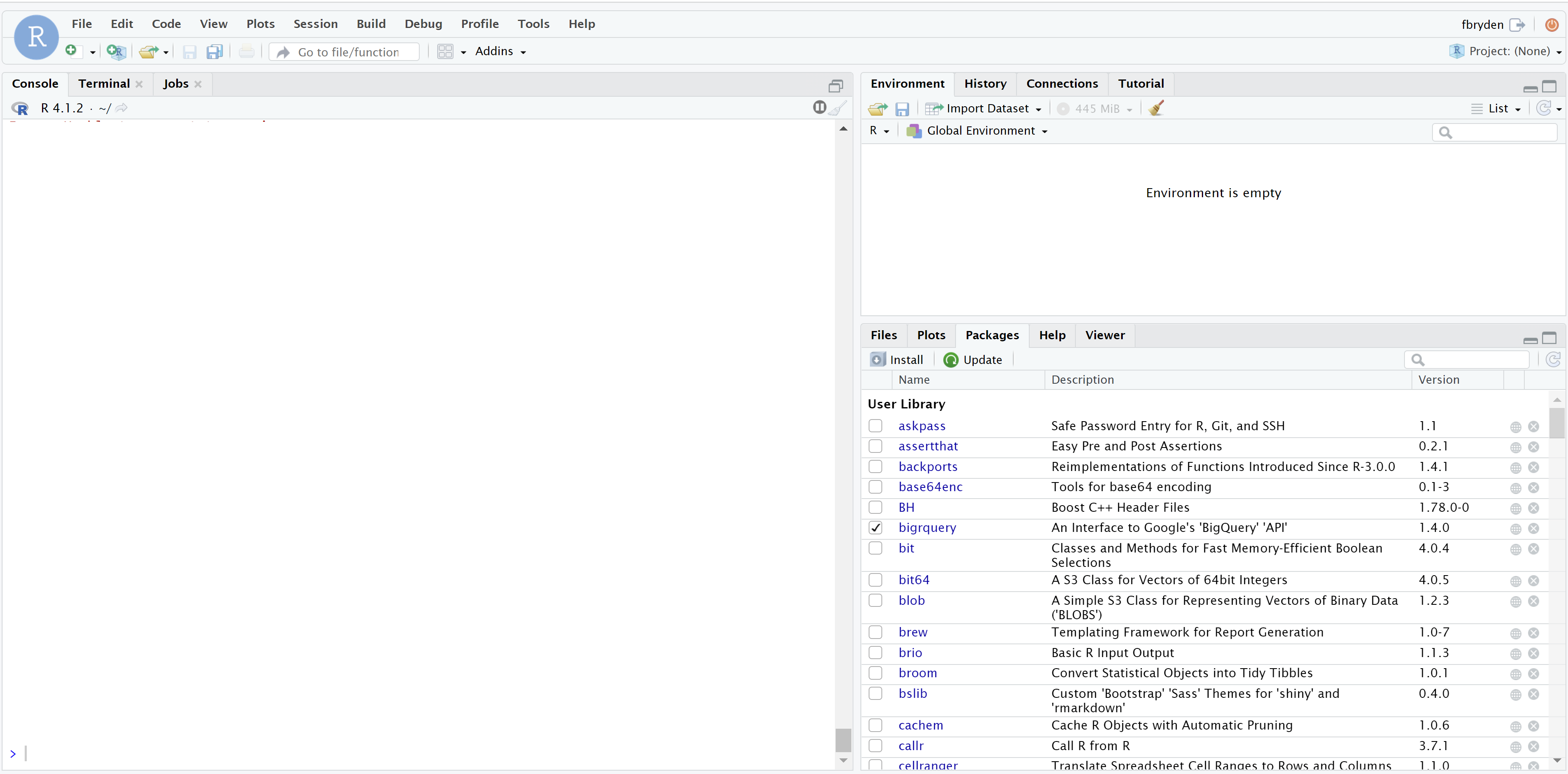
- Console (left) - all code is run through the console, even the code you write in the script editor is sent to the console to be run. It’s perfect for quickly viewing data structures and help for functions but should not be used to write code you want to save (that should be done in the script editor).
- Environment (top right) - all data, objects and functions that you have read in/created will appear here.
- Files/Plots/Help (bottom right) - this pane groups a few miscellaneous areas of RStudio.
- Files acts like the windows folder to navigate between files and folders.
- Plots shows any graphs that you generate.
- Packages let’s you install and manage packages currently in use.
- Help provides information about packages or functions, including how to use them.
Once you load up a code script, you’ll see a fourth window appears in the top left of the screen. This is the Script Editor. It is used to write and save your code.
1.3 How do I run some code?
There’s two different ways to run code in R, depending on whether you’ve written it in the console or the script editor.
- If it’s written in the console, it’ll run every time you press enter. This means you can’t add line breaks into code you run in the console.
- If it’s written in the script editor, it won’t run when you press enter. You need to select the code you want to run and press CTRL + ENTER to run it. Pressing CTRL + A + ENTER will run all of the code in a script you have open.
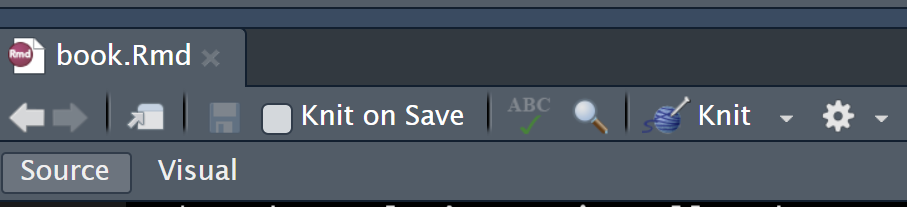
Rmarkdown documents: if you have your code written in an RMarkdown script (you can tell this because the file name will end with .Rmd not .R), you run it in a slightly different way. Use the knit button to run all of the code in the document in one go instead.
1.4 How do I tell if something has worked?
This is not a silly question! Unlike most point-and-click interfaces, R and other coding languages tend to “succeed quietly” but fail loudly. This means that if something works, you’ll often get no message either way.
To check if R has finished or is still running, check your console and see what the last line starts with:
>R has finished running code, and is waiting for you to give it something else to do+R is waiting for you to type something else; this usually means the code you’ve given it is missing a bracket somewhere, so R doesn’t think it’s done. To get out of this, you can press ESC.If the row is blank, R is still in the process of running code, and can’t accept any more commands right now.
You can scroll up on the console to see if there are any error messages. The console will also print out every line of code you asked it to run; this is normal, and doesn’t mean there’s an error.
Error messages will always start with Error and mean that the code has either partially or completely failed. You may also see messages that start with Warning these mean that the code has run, but there may or may not be problems with it. Check the Bugfixing section below for more information on this.
If there are no error messages, congratulations! This means the code has done what you asked it to do.
1.5 How do I find someone else’s code?
So hopefully before your coder vanished off on holiday/to a new job/to a tropical island, they let you know where they’d stored their code. Realistically, this will either be on Github or on a shared drive.
1.5.1 Code on Github
This feels like the harder of the two options, but it’s actually easier because Github holds the code in a structured way for you.
You’ll know if your code is on Github because it’ll be provided as a link (starting with https://github.com/department-for-transport). If you try to open the link and get a 404 error, don’t panic! You usually won’t be able to see the repository without being logged in to the DfT Github organisation.
For details of how to get a licence and get a copy of that code onto your version of R, check out the Coffee and Coding wiki.
If you know the code is on Github but you don’t have a link, don’t worry about that either! Go to the DfT Enterprise page and use the search function to look for the repository. It can do keyword searches on details such as the repository name and description, or you can even browse through all repositories by date last updated, so even with only a few details you should be able to find the right one.
When you clone the repository into R, it will open it up as a project automatically, and you can start working with the code the way the author intended! You can open individual .R scripts now, and they will open properly inside the project you’re using.
1.5.2 Code on a shared drive
You might also find that someone has saved their code onto a shared drive. This is more familiar, but can be tricky to work out how to use the code.
Navigate to the folder you think the code is stored in, and start looking for an R project file. This is different to an R file; it will end with the file extension .Rproj instead of .R, and the icon is a little cube with an R in it. In the example below, the third file down is the project file.
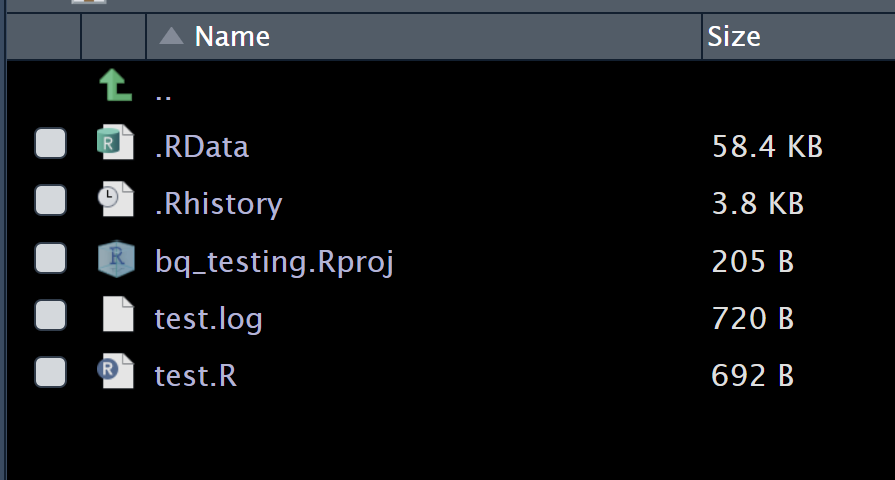
Once you’ve found the project file, open it up in R. This will open the project in the way the original author intended.
If you can’t find the project file, try looking in the folder above the code folder, and other folders nearby. If you’ve still got no luck, there may not be a project associated with this work, and you can open the .R code files directly in R. Be aware though, if there is a project file and you couldn’t find it, the code may work in strange ways without it.
1.6 What’s a library and how do I use them?
Important note: If when you open your project in R, you get a message
The project and lockfile are out of sync -- use renv::status() for more detailsor any other message which includes the word renv, skip to the renv section for details on how to deal with this.
In almost any R script, you will see that they make use of libraries. These are custom collections of code written by other people which you can install and use in your own projects.
These are usually referenced at the top of the script with library(package name) e.g. library(dplyr). Seeing a library call like this means that the code won’t run without that library. To use a library, you need to install it the very first time you use it, and then every time after it you just need to do the library call.
Missing libraries are the most common cause of errors. When you open a code file for the first time, just try running the library calls at the top of the file first, and look for error messages. These will usually look like:
Error in library(test) : there is no package called ‘test’
This means that you’re missing the library called test from your version of R, and you need to install it first.
Installing libraries isn’t too difficult, you just need to run install.packages("your package name"), and R will do the rest for you.
Once the library is installed, run the library calls again to check it’s worked.
1.7 I can’t install a package?
Of course, just because installing libraries isn’t difficult doesn’t mean it can’t give you problems! There are a few different problems that might mean your installing efforts fail. These are ordered in likelihood from most to least likely, so follow them in order.
- You’ve mistyped something: Make sure you’ve spelled the package name right, it’s in quotation marks, and you’re using the install.packages() function.
- You’re using a version of R that doesn’t allow package installing: Citrix and Local R can have serious issues with package installation. Using Cloud R guarantees you’ll be able to install properly.
- You’ve got a malformed repository address: this is a rare bug on Cloud R which is easily fixed. In your console, run this line of code:
options(repos = "https://gcp-rs-pack-man/DfT-Full-Cran/__linux__/centos7/latest"). This will only need to be run once and should fix the problem. - You’re trying to install a package that doesn’t work on Cloud R: packages with known issues include odbc and leaflet. Check the coffee and coding channel and wiki if you’re installing one of these to see the workarounds.
- You’re trying to install a non-CRAN package: install.packages() only works with CRAN packages (which are available to the public). If you’re trying to install a package that isn’t on CRAN (such as a Github package), it won’t work. Known DfT-specific examples of these kinds of packages include {dftplotr}, {slidepackr} and {dftutils}, but there are many more. To check how to install these, google the package name and “github”, to find the package page on Github, and follow the instructions there on how to install.
- You’re trying to install a package with a dependency on a failing package: Read carefully through the error messages and find the first package that failed to install. Check if any of the previous errors apply to that.
- You’ve found a new error with package installation: If none of the above works, post on the coffee and coding Teams channel with a clear description of 1, the package which fails to install, 2, a copy of all of the error message you get from R.
1.8 Something something renv?
Some projects may make use of renv. This is a package manager which installs packages for you, making it easy to use a project, but you need to handle it in a slightly different way.
There’s a few different ways to know if the project uses renv:
- When the project loads, there’s a message in the console that uses the word “renv” in it somewhere.
- There’s a folder in the project called
renvand/or a file calledrenv.lock
Important note: You can skip this section if the project you’re using doesn’t use renv, there’s nothing useful in it otherwise!
Once you’ve established that your project uses renv, you need to:
- Install the renv package yourself: run the code
install.packages("renv"). If this fails, check the can’t install packages section above. - Once that has installed, run
renv::restore()in the console. This will install all the packages for you with the right versions, from the right places. It may take a while to do so, but it won’t need any input from you to do so.
1.9 Bugfixing
Inevitably, when you’re running code under pressure, something will go wrong and you’ll get an error. The most important things you can do when you get an error are:
- Find the first error: R won’t stop when it finds an error; it’ll keep on doing stupid things even if a previous step has failed. Scroll up through the console and find the first error that made everything else go wrong
- Read the error. They may seem scary, but lots of errors are very descriptive and tell you what’s wrong.
Once you’ve found the error and read about it, work your way through the below suggestions:
1.9.1 A library hasn’t installed
This is the number 1 issue with code that someone else has written. Check to see if any of the needed libraries are giving you an error message. Follow the suggestions in the installing packages troubleshooting to get the erroring library installed.
1.9.2 A filepath is wrong
Filepaths can be tricky because they can give a wide range of issues, but if the first problem you see is something saying file does not exist or No such file or directory, this is a good sign you’re dealing with a bad filepath.
There’s two types of bad filepaths, and you need to firstly work out which one you’ve got. When you look at the broken filepath, is it an absolute filepath (starts from the drive it’s saved in e.g. G:/folder/folder/file.csv) or is it a relative filepath (starts from a folder somewhere in an existing file structure e.g. Data/file.csv).
1.9.2.1 Absolute filepaths
The most common problem is that you’re trying to call a shared file directory that doesn’t exist on Cloud R. Make sure your filepaths only call the G drive, and if they do so, refer to the drive as “~/g/etc” rather than “G:/”.
Beyond that, use the function list.files() to check the file exists in the folder you’re looking for it in. For example, if you can’t read in a file called "2022/files/this_one.xlsx", run list.files("2022/files/") and check the file exists in the output. Remember R is case sensitive, needs you to include file extensions, and that spelling matters!
1.9.2.2 Relative filepaths
Similar to absolute filepaths, you might just be referring to a file that no longer exists. Use list.files() in the same way to check if it’s there.
If the file appears where you’re expecting it to be, or alternatively no files appear in a folder that definitely shouldn’t be empty, you may have a project issue. This means that the code you’re running is supposed to be run from inside a project, which you haven’t opened. The project file sets things like the location R is looking in, so you’re probably currently looking in the wrong place.
You need to track down the project file and open that before you open and run any code. See the earlier section on finding other people’s code to see how to do this.
1.9.3 Working directory issues
Similar to the above problems, but you’re getting an error even before you try to read in the files. This error will say something like cannot change working directory.
This is caused by a (worse) alternative to creating an R project, setting a working directory. It’s done with a setwd() call, which will make the code run from the folder path given inside of it.
This is failing because either the folder doesn’t exist, or you don’t have permission to access it. If it doesn’t exist, find the folder it’s meant to be pointing to, and update the filepath to that. If you don’t have permission to access it, get permission!
Note, there is no other reason why you get this error message; it’s always one of those two problems (people often assume it’s an R permissions issue because of the message wording).
1.9.4 A function is not found
Sometimes, all of the library calls will work but you’ll get an error saying that a function is not found. This will be something like could not find function, giving the name of the missing function.
This usually means one of two things:
- A function name is spelled wrong (has someone written
filtre()instead offilter())? - More likely with previously working code; you’re missing a library in your library calls. To try and fix this; google the name of the function that R can’t find. It should tell you what library it is associated with; try calling that library into R using
library("package name"). Like other libraries, you might need to install it too.
Rarely, this can also be a problem if you’re running new code on an old version of R. Never try to run Cloud R code on Citrix as a result!
1.9.5 You don’t have the right permissions for something
All versions of R work off the same permissions as you have. If you don’t have permission to access a file, folder, SQL database, etc., neither does R.
If something like a file read or SQL query fails, often this is a lack of permissions. Check you can actually access file or table, and that it exists.
1.9.6 You’re using the wrong version of R or a package
As previously discussed, there are three very different versions of R available in DfT. These come with different versions of the same packages, and can therefore have unexpected results. Siliarly, you can install a different version of the same package and produce different results.
If you’re getting strange errors that other people in your team can’t reproduce, check what version of R and packages you’re all using. Common package culprits include {openxlsx}, {dplyr} and {data.table}.
1.9.7 Your data structure has changed
Code is often written quite inflexibly to expect data structure to remain unchanged between sessions. If something like the number of columns, column names, or data types in a table have changed, this can often cause code to fail.
Often the error message won’t explicitly say this; you will tend to see errors telling you that certain columns don’t exist or can’t be filtered on. If this happens, check the structure of the data you have read in using glimpse() to check that the following is consistent:
- Column names
- Number of columns
- Order of columns (in some cases)
- Column class (e.g. numeric, logical, string)
- The symbol used to indicate NA values
- Number of white spaces or case of text
Structural aspects such as the number or order of rows changing should not generally cause errors.