Chapter 3 Advanced Queries
In the previous chapters, we covered the basics of BigQuery queries, including selecting, filtering, sorting, grouping, and aggregating data. In this chapter, we will explore more advanced queries, including creating tables, joining them, and inserting data.
3.1 Creating Tables
To create a table in BigQuery, you can use the CREATE TABLE statement. The syntax for the CREATE TABLE statement is as follows:
CREATE TABLE table_name (
   column1 datatype1,
   column2 datatype2,
   ...
);
In this syntax, table_name is the name of the table you want to create, and column1, column2, … are the columns you want to include in the table, along with their data types.
A data type in BigQuery specifies the type of data that can be stored in a column of a table. Here are some of the most common data types in BigQuery:
- STRING: A variable-length character string.
- INT64: Integers are numeric values that do not have fractional components.
- FLOAT64: Floating point values are approximate numeric values with fractional components.
- BOOLEAN: Boolean values are represented by the keywords TRUE and FALSE (case-insensitive).
- DATE: The date type represents a logical calendar date, independent of time zone.
- TIME: A time value represents a time of day, as might be displayed on a clock, independent of a specific date and time zone.
- DATETIME: A datetime value represents a date and time, as they might be displayed on a watch, independent of time zone. It includes the year, month, day, hour, minute, second, and subsecond.
- TIMESTAMP: A timestamp value represents an absolute point in time, independent of any time zone or convention such as Daylight Savings Time, with microsecond precision.
- GEOGRAPHY: A collection of points, linestrings, and polygons, which is represented as a point set, or a subset of the surface of the Earth.
You can also use more specialized data types, such as arrays, structs, and bytes. For example, the ARRAY data type allows you to store an array of values in a single column.
When defining columns in your CREATE TABLE statement, you can specify whether a column can contain NULL values or not by using the NOT NULL or NULL keywords. If you specify NOT NULL, then the column must have a value for every row in the table.
For example, the following query creates a new customers table with three columns: customer_id, name, and email:
CREATE TABLE customers (
   customer_id INT64 NOT NULL,
   name STRING NOT NULL,
   email STRING
);
You can also create a table from an existing table using the SELECT AS clause. The syntax for creating a table from an existing table is as follows:
CREATE TABLE new_table AS
SELECT ...
FROM existing_table;
In this syntax, new_table is the name of the new table you want to create, and existing_table is the name of the existing table you want to use as a source.
For example, the following query creates a new table that contains the max wind speed for the different types of storm based on the storms table:
CREATE TABLE `dft-stats-gcp-showcase.TS_Training.tst_max_wind` as
SELECT status, MAX(wind) as max_wind
FROM `dft-stats-gcp-showcase.TS_Training.tst_storms`
group by status
It is also possible to create temporary tables, which we cover in 4.1.
3.2 Joining Tables
In BigQuery, you can join two or more tables together using the JOIN clause. The syntax for the JOIN clause is as follows:
SELECT ...
FROM table1
INNER JOIN table2
ON table1.column = table2.column;
In this syntax, table1 and table2 are the tables you want to join, and column is the column used to join the tables together.
For example, the following query joins the storms table and the newly created max_wind table together on the status column:
SELECT *
FROM `dft-stats-gcp-showcase.TS_Training.tst_storms` storms
INNER JOIN `dft-stats-gcp-showcase.TS_Training.tst_max_wind` max_wind
ON storms.status = max_wind.status;
Note how I have giving shorter names to the two tables.
3.3 Types of joins
There are several types of joins you can use to combine tables.
Inner Join: An inner join returns only the matching rows from both tables. If a row in one table has no match in the other table, it will not be included in the result set. This is the default join and the one we used above.

Inner Join
An example of an inner join would be if you have two tables: PRODUCTS, showing all stock a store sells, and ORDERS, showing information of completed orders. In inner join between the two would show you only the products that have been ordered.
Left Join: A left join returns all the rows from the left table and matching rows from the right table. If there is no match in the right table, the result will contain null values for the right table columns.
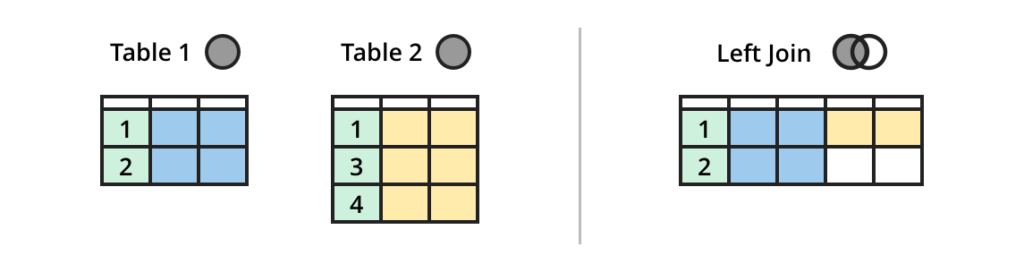
Left Join
A left join should be used when you require all rows from the left table, but only pertinent rows from the right table. Using the above example of PRODUCTS and ORDERS tables. A left join would show you all the products, including those which have never been ordered.
Right Join: A right join returns all the rows from the right table and matching rows from the left table. If there is no match in the left table, the result will contain null values for the left table columns. It is best practice to only use Left Joins, never Right Joins. Right Joins can always be replaced by Left Joins.
Full Outer Join: A full outer join returns all the rows from both tables, with null values for any unmatched rows. Also refered to as a Full Join.
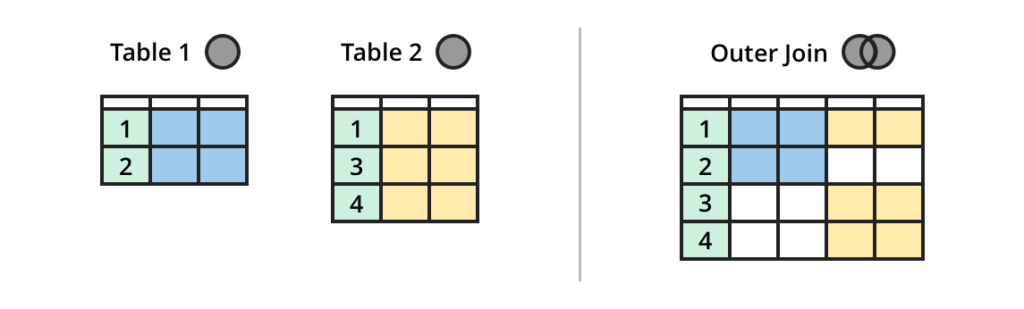
Outer Join
Full joins are used to retrieve all records from both tables, whether there is a match or not. The results of a full join can indicate mismatched values or references to non-existent primary keys. It can also be used to run expception reports.
Cross Join: A cross join returns the Cartesian product of the two tables, which means it returns all possible combinations of rows from both tables.
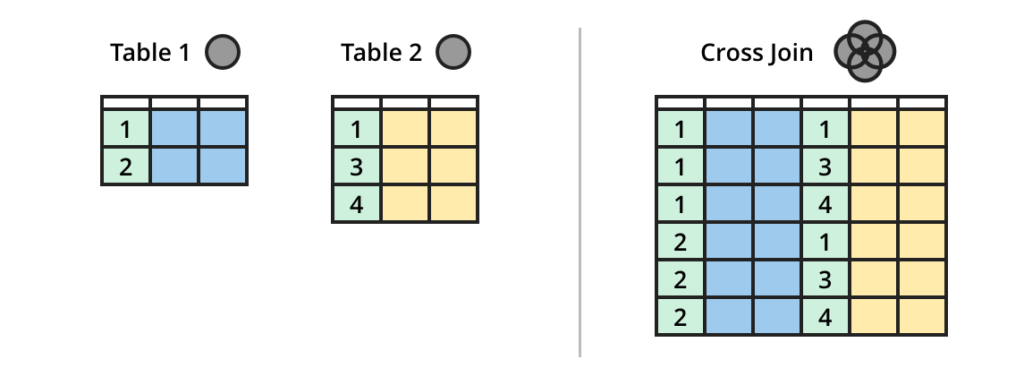
Cross Join
A cross join can be useful for covering date ranges; taking each row from a table and applying it to every day within a date range. For example, building an application which tracks daily tasks. You could use a cross join to generate a record of every task for each day of the past week.
It’s important to understand the differences between these types of joins, as they can have a significant impact on your query results. It’s also important to carefully consider which type of join is appropriate for your specific use case, depending on the data you are working with and the questions you are trying to answer.
Although JOIN in SQL will performa an Inner Join by default, it is always best practice to specify the type of join you are using in SQL. Use INNER JOIN instead of JOIN.
3.4 Grouping and Aggregating Data with Joins
When joining tables together, you can also use the GROUP BY and aggregate functions to group and aggregate data across multiple tables. For example, the following query groups the orders by the name column in the customers table:
SELECT customers.name, COUNT(*)
FROM orders
INNER JOIN customers
ON orders.customer_id = customers.customer_id
GROUP BY customers.name;3.5 Inserting Data
To insert data into a table in BigQuery, you can use the INSERT INTO statement. It is important to note that tables must first exist before you can insert data into them. The syntax for the INSERT INTO statement is as follows:
INSERT INTO table_name (column1, column2, ...)
VALUES (value1, value2, ...);
In this syntax, table_name is the name of the table you want to insert data into, column1, column2, … are the columns you want to insert data into, and value1, value2, … are the values you want to insert into the columns.
For example, the following query inserts a new row into the bigquery_training table:
INSERT INTO`dft-stats-gcp-showcase.TS_Training.training_record`
VALUES("yellow", "15th March", "Tom Westlake");